Minecraft addon not showing up or won't import
Usually the addon is fine and only needs the right last step. Work down this list in order: the first cause is the usual one, and the missing-dependency one is the sneakiest. Written for Minecraft Bedrock 1.21.x and 26.x (v1.26.30 in the game is 26.30 on our pages).
Quick fix: an imported addon is not an active addon.
- Open the world, tap Edit, go to Behavior Packs, then Available, and tap Activate.
- Do the same under Resource Packs. Both packs must be on, in every world you want to use the addon in.
- Still nothing? Check for a missing dependency, turn on Beta APIs, and update Minecraft and the app.
What our own reports say: between 16 June and 2 August 2026 we read 24,197 “this mod is broken” reports from our app. 35.7% said the file never arrived and 35.0% said Minecraft would not open it. Only 16.7% were about an addon that imported and then misbehaved in the game, which is the case this page is mostly about. Source: we read 24,197 reports.
1. The pack isn't activated in your world
This is the number one reason an addon "doesn't show up." Opening the file imports it into Minecraft; you still have to switch it on for each world:
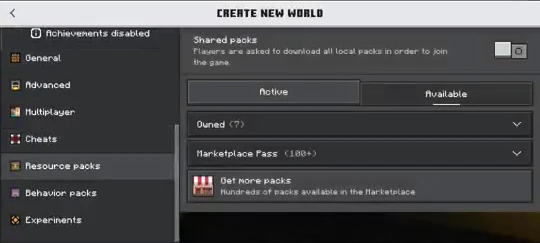
- Open your world, tap Edit (the pencil), then Behavior Packs and the Available tab. Tap the pack, then Activate.
- Do the same under Resource Packs, Available, Activate. This is the textures and the look.
- Both should now appear under Active. Press Play.
The step everyone misses: Available → Activate
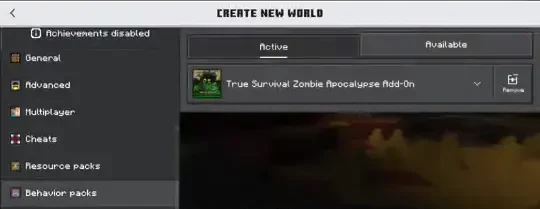
Full walkthrough with both packs: How to install Bedrock addons.
2. Behavior pack vs resource pack: enable both
Most addons are really two packs that work as a pair, and Minecraft lists them in two different places:
- Behavior pack carries the rules: new mobs, item logic, recipes, scripts.
- Resource pack carries the look: textures, models, sounds, names.
Switch on only the behavior pack and the new things exist but can look wrong: invisible, pink-and-black, or named with raw text. Switch on only the resource pack and you get new textures but none of the new behavior. Some addons ship just one of the two, so you will only find one entry; that is normal. When there are two, activate both, in every world.
3. The addon needs another addon (missing dependency)
Some addons are built on top of a second pack: a shared library, a "core" pack, or the first part of a series. The addon's manifest names that pack as a dependency. If it isn't installed, yours imports and activates without any error, and then does nothing, or Minecraft shows a missing-dependency warning next to it.
- Open the addon's page and read the description for words like "requires", "needs" or "install first".
- Download and import the required pack the same way as the main one.
- Activate both in the same world, then press Play again.
It is not rare. When we scanned our catalogue on 5 September 2026, 2,302 of the 39,561 packs we had analysed declared a dependency that is not inside their own file, and about 7.6% of the add-ons we had opened by 2 August were only half a pack. How to spot it, why it happens and what to do when the description says nothing: Your add-on needs another add-on.
4. Scripted items still do nothing → enable Beta APIs
If the addon activated but custom items, mobs or commands don't work, the addon probably uses scripts. In the world's Settings → Experiments, turn on "Beta APIs", then play again. Of the 32,897 Bedrock packs we had opened by 2 August 2026, 1,560 (4.7%) ask for an experimental toggle, and those packs drew 2.15 reports per 1,000 opens against 0.62 for the rest (27 July to 2 August). The numbers and the method are in 1,560 add-ons need one Minecraft toggle.
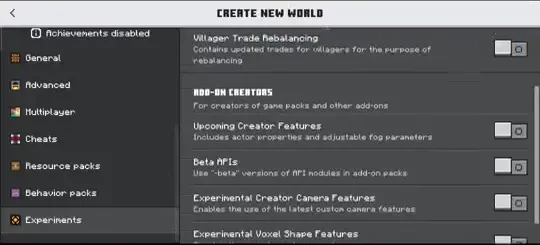
The set of experiment toggles changes between Minecraft versions. If the addon says it needs one, enable it under Settings → Experiments in the world; for scripted addons that is usually Beta APIs. Turning experiments on disables achievements in that world, so use a copy of important worlds.
5. Wrong edition (Java file on Bedrock, or vice versa)
Bedrock and Java don't share mod files. Bedrock addons are .mcpack / .mcaddon; a Java mod is a .jar and will never import into the mobile, console or Windows Bedrock game. Check you grabbed the Bedrock version, and if you're on Java, see the Java mods guide.
6. Old Minecraft or app version → update first
Two things can be too old. First, the game: a pack built for a newer Minecraft version may not show up or work on an old one, so update Minecraft from your store. Second, our app: many "won't download / won't import" reports come from older app versions whose bugs are already fixed. Update MC Bedrock Mods on Google Play, then try the addon again.
7. The file won't import / says it's invalid → use in-app repair
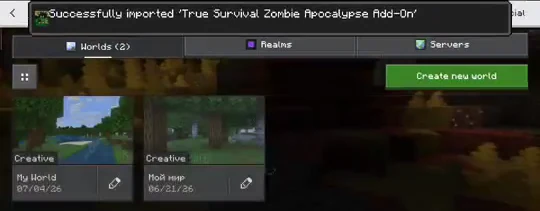
Some community files are packaged in a way Minecraft rejects, for example a wrapper folder or a stray __MACOSX entry from being zipped on a Mac. The app detects and repacks these automatically so they import cleanly. If a file refused to import, re-download it in the app to get the repaired version, then open it again. After a good import Minecraft shows a "Successfully imported" message:
8. The download opens a website instead of a file
A few items are hosted on another community site, so the app opens that page, because we're not allowed to host the file directly. Download it there, then open the downloaded file; it imports into Minecraft the same way. If you'd rather not leave the app, search for the same name and pick a result that downloads in-app. Wherever you download from, stick to trusted sources: see how to download Bedrock addons safely.
9. Android, Windows, iOS and consoles: what changes
The activation steps are the same everywhere. What differs is how the file gets into Minecraft, and that is where "not showing" often starts. The full per-platform walkthrough is in the install guide; here are the parts that matter when something is missing.
Android
This is the path our app is built for: tap Download, tap the file, Minecraft opens and imports. If the file opens in an archive or file-viewer app instead, go back and choose Minecraft. Don't unzip it by hand.
Windows 10 and 11
Double-click the .mcpack or .mcaddon file and Minecraft for Windows (the Bedrock edition) opens and imports it. If Windows asks which app to use, pick Minecraft. The Java edition and its launchers don't import these files.
iPhone and iPad (iOS, iPadOS)
Our one-tap app flow isn't available there. Save the file to the Files app, then share or open it with Minecraft; the exact wording of the share menu changes between iOS versions. After the import, activate the packs in the world as usual. If you have an iPhone and an Android phone, importing on Android is the simpler test.
Xbox, PlayStation and Nintendo Switch (console)
A console has no way to open an .mcpack file, so third-party addons can't be installed on the console itself. The route people use is to set the addon up in a world on a PC or phone and play that world on the console through Realms. This path is limited and depends on your platform, version and subscription, so check the official guidance at help.minecraft.net before you spend time on it.
10. Still broken? Report it from the app
If a specific addon genuinely won't download, report it from its page in the app. We look at every report and flag broken downloads, and the app will often suggest a working alternative you can grab right away.
Get MC Bedrock Mods
Auto-repair for tricky files, in-app diagnosis, and a working alternative when a download fails. Free on Android.
Frequently asked questions
Addon installed but not showing up in game — why?
Almost always the pack was imported but never switched on in the world. Open the world, tap Edit, then Behavior Packs, Available, tap the pack and Activate, and do the same under Resource Packs. If it still does nothing, check that the addon does not need a second addon (a missing dependency), that Beta APIs is on for scripted addons, and that Minecraft and the app are up to date.
Addon imported but doesn't appear in the pack list
Packs live in the world settings, not on the main menu: world, Edit, then Behavior Packs or Resource Packs, and the Available tab (not Active). If a pack is missing there, the import probably failed or the file was a Java mod: look for the "Successfully imported" message, check it is a Bedrock .mcpack or .mcaddon, and update Minecraft, since a pack built for a newer game version may not be usable on an old one.
Does the addon need to be enabled in each world?
Yes. Importing puts the addon into Minecraft once, but behavior packs are switched on per world, so every world where you want the addon needs its own Activate. Resource packs can also be switched on for all worlds through Settings, Global Resources.
Why does the addon work on Android but not on my iPhone?
Our app and its one-tap import are Android only, so on iPhone you have to get the file into Minecraft yourself (save it to Files, then share it to Minecraft). The addon itself is the same, so the usual causes still apply: the packs are not activated, a second addon is missing, Beta APIs is off, or Minecraft is out of date. If the file never imported, try it on an Android phone or a PC and move the world over.
Is it safe to download addons?
A real Bedrock addon is a .mcpack or .mcaddon file that only opens inside Minecraft. Download from trusted sources, and treat any "addon" that asks you to run an .exe, .bat or install a separate .apk as a warning sign. Our short checklist is in how to download Bedrock addons safely.
I downloaded the addon but it's not in Minecraft at all
Open the downloaded file again so Minecraft imports it. Then activate it: world, Edit, Behavior Packs, Available, tap the pack, Activate, and the same for Resource Packs. Updating the app first clears up many import problems.
It imported but the items or mobs don't appear or work
Check the Resource Pack is active for the textures and, if the addon is scripted, enable Beta APIs in the world's Experiments settings. Both packs of an addon usually need to be on, and some addons also need another addon installed.
The file says it's invalid or won't import
It may be packaged in a way Minecraft rejects, such as a wrapper folder or a __MACOSX entry. The app repacks these automatically, so re-download it in the app and open the repaired file. Make sure it is a Bedrock .mcpack or .mcaddon and not a Java .jar.
Why does the download open a website?
That item is hosted on another community site, so the app opens its page rather than hosting the file. Download it there and open the file; it imports the same way. Or search the same name for a result that downloads in-app.