How to install Minecraft Bedrock addons & mods
Bedrock addons come as .mcpack or .mcaddon files. Installing one is three quick steps, but most "the addon doesn't work" problems come from missing the last one: activating the packs in your world. Here is the full flow, with what changes on Windows, iPhone and consoles.
Quick install:
- Download the addon and open the file: Minecraft imports it by itself.
- Open your world, tap Edit, then activate the pack under Behavior Packs and under Resource Packs.
- Press Play. Scripted items do nothing? Turn on Beta APIs in Experiments.
Before you start
- Minecraft: Bedrock Edition installed on the device where you will play, and up to date. This guide is written for Bedrock 1.21.x and the newer 26.x releases; the version is printed in the bottom-left corner of the main menu, and v1.26.30 there is 26.30 on our pages. (Java Edition uses different files, see the Java mods guide.)
- An addon file ending in .mcpack or .mcaddon, from a source you trust (see Is it safe?).
- About two minutes. No PC, cables or file managers are needed on a phone or tablet.
Step by step (Android)
This is the flow in the MC Bedrock Mods app, shown with real screenshots from an Android phone. Other platforms follow the same idea; the differences are in the platform section.
Download the addon
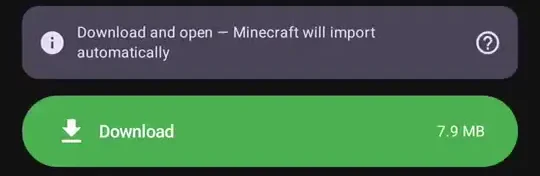
In the MC Bedrock Mods app, open the addon and tap Download. You'll get a .mcpack or .mcaddon file.
Open the file: Minecraft imports it
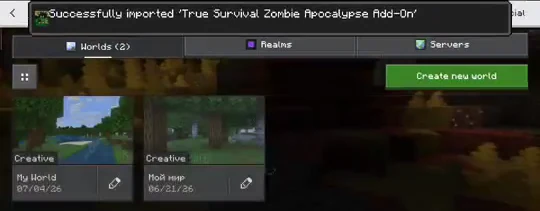
Tap the downloaded file. It opens in Minecraft and imports automatically, and you'll see a confirmation. Nothing is copied or unzipped by hand.
Activate the Behavior Pack in your world
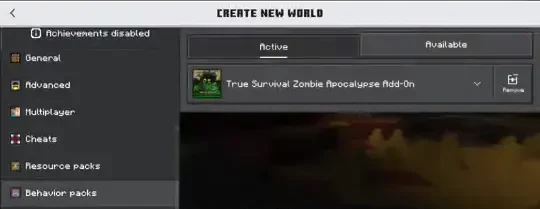
In Minecraft: open your world, tap Edit (the pencil), then Behavior Packs, the Available tab, tap the pack and Activate.
Behavior Packs → Available → tap the pack → Activate
Activate the Resource Pack too
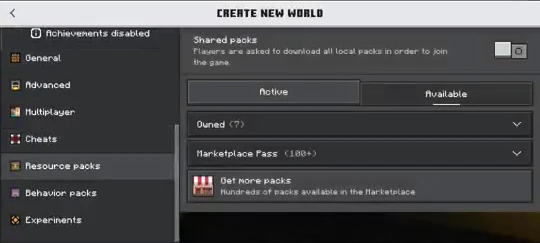
Now do the same under Resource Packs, Available, Activate. This is the textures and the look; without it the addon's items and mobs may be invisible or wrong.
Resource Packs → Available → tap the pack → Activate
Press Play
Both packs now show under the Active tab. Press Play and the addon is live in that world.
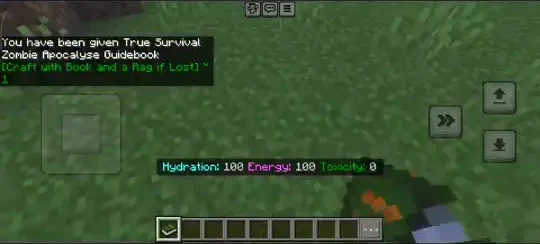
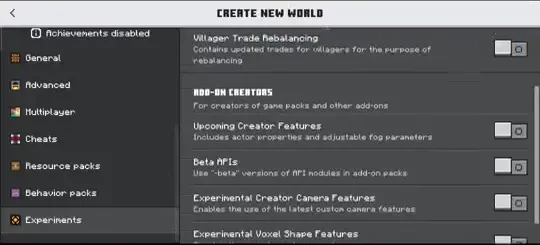
Items still doing nothing after activating? Some addons use scripts. In the world's Settings → Experiments, turn on "Beta APIs", then play again. (The set of experiment toggles changes between Minecraft versions: if the addon says it needs a different one, enable that too. For scripted addons it is usually Beta APIs.)
Tip: turn a texture pack on for every world at once. Texture and visual packs can be enabled globally via Settings → Global Resources → My Packs → Activate instead of per world.
Behavior pack vs resource pack: enable both
Most addons are two packs that work as a pair, and Minecraft lists them in two different places:
- Behavior pack: the rules. New mobs, item logic, recipes, scripts.
- Resource pack: the look. Textures, models, sounds, names.
Only the behavior pack on: the new things exist but can be invisible, pink-and-black or show raw text names. Only the resource pack on: nice textures, no new behavior. Some addons ship just one of the two, which is fine. When there are two, activate both, in every world you want to use the addon in.
When the addon needs another addon (missing dependency)
Some addons are built on top of a second pack, such as a shared library or the first part of a series. That other pack is called a dependency. If it is missing, your addon imports and activates quietly and then does nothing, or Minecraft shows a missing-dependency warning. Read the addon's description for "requires" or "install first", import the required pack the same way, and activate both in the same world. Details: Your add-on needs another add-on.
Android, Windows, iOS, Xbox, PlayStation and Switch
Activation in the world (steps 3 to 5) is identical on every platform. What changes is how the file gets into Minecraft.
Android
The smoothest path: download in our app, tap the file, Minecraft imports it. Without the app, a file from your browser's Downloads works too: tap it and choose Minecraft. If it opens in an archive app, go back and pick Minecraft; don't unzip it.
Windows 10 and 11
Download the .mcpack or .mcaddon file and double-click it. Minecraft for Windows (the Bedrock edition) opens and imports it. If Windows asks which app to use, choose Minecraft. Java Edition and its launchers don't read these files.
iPhone and iPad (iOS, iPadOS)
Our one-tap flow is Android only. On iOS, save the file to the Files app, then share or open it with Minecraft; the wording of the share menu changes between iOS versions. After the "Successfully imported" message, activate the packs in the world exactly as above. (Our iPhone app, Addonaut, has its own catalogue of add-ons and hands the file to the game through the same share menu.)
On iPhone? There is a step-by-step guide just for it: Minecraft Bedrock add-ons on iPhone and iPad.
Xbox, PlayStation and Nintendo Switch (console)
A console can't open an .mcpack file, so third-party addons can't be installed on the console itself. The route people use is to set up a world with the addon on a PC or phone, then play that world on the console through Realms. It is a limited path that depends on your platform, game version and subscription, and we haven't tested every console combination. Check the official help at help.minecraft.net before relying on it. Marketplace content is the officially supported way to get addons on a console.
.mcpack vs .mcaddon: what's the difference?
A .mcpack is a single pack (one behavior pack, or one resource/texture pack). A .mcaddon bundles several packs together, and opening it imports all of them at once. Either way the install flow is the same: open the file, then activate the packs in your world.
Is it safe? Download from trusted sources
A genuine Bedrock addon is just a .mcpack or .mcaddon file that opens inside Minecraft. It never needs you to run an .exe or .bat on a PC or install a separate .apk; if a page asks for that, close it. Prefer sources that show the file type, the Minecraft versions it supports and who made it. The short checklist is in how to download Bedrock addons safely.
Installed but not showing up?
Most of the time it is one of three things: a pack that was imported but not activated, only one of the two packs switched on, or a missing second addon. Work through Minecraft addon not showing up or won't import.
Get MC Bedrock Mods
Browse 26,653 Bedrock addons (count on 5 October 2026), plus maps, skins & textures: tap to download and the game imports it. Free on Android.
Frequently asked questions
I opened the file but nothing happens in my world
Importing the file is not the same as turning it on. Open your world, tap Edit, go to Behavior Packs, Available, tap the pack and Activate, then do the same under Resource Packs. If the addon uses scripts, also enable Beta APIs under the world's Experiments settings. Still nothing: see addon not showing up.
Do I have to import the addon again for every new world?
No. You import the file once and Minecraft keeps the packs in its own storage. For each new world, open Edit and activate the behavior pack and the resource pack there (steps 3 and 4 above).
Do I need a PC to install Bedrock addons?
No. On a phone or tablet everything happens on the device: download the file, open it, and Minecraft imports it. On Windows you just double-click the file. Xbox, PlayStation and Switch are the exception, see the platform section above.
Can I install addons on Xbox, PlayStation or Nintendo Switch?
Not directly: a console cannot open an .mcpack or .mcaddon file. The route people use is to set up the world with the addon on a PC or phone and play it on the console through Realms. It is limited and depends on platform, version and subscription, so check help.minecraft.net first.
How do I install an addon on an iPhone or iPad?
Save the .mcpack or .mcaddon file to the Files app, then share or open it with Minecraft; the wording of the share menu depends on your iOS version. After the "Successfully imported" message, activate the packs in the world the same way as on Android (steps 3 and 4).
What should I check before opening a downloaded addon file?
Look at the file name first: it should end in .mcpack or .mcaddon and open straight into Minecraft. If it is an .exe, .bat or .apk, or the page tells you to install a downloader, close it. Prefer pages that show the author and the supported game versions. The long version is in how to download Bedrock addons safely.
Where do addons download to?
The file saves to your Downloads, and tapping it hands it to Minecraft. You don't need to find or move it manually; once imported it lives inside Minecraft's own pack storage.
The addon imported but items are invisible or pink/black
That is the Resource Pack not being active. Go to Resource Packs, Available, Activate. The Resource Pack carries the textures; the Behavior Pack carries the behavior. Most addons need both on.